How to manage your PC from iPad freely
📋 Table of Contents
Table of contents will be generated automatically based on article headings.
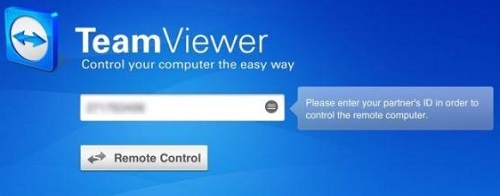
Happy news for all as a new remote-control utility has been brought about recently that will allow you to control your PC using your iPad and that too for free. The utility has been named “Access”. We would not be discussing about Access in this article as it is not going to be of great use for the general user. Access is not free and it costs around $80 per year. So over to utilities like Access that you can access for free. On top of the list comes TeamViewer, which is free. The most attractive element of this utility is that it is available on a range of platforms like iPad, iPhone, Android, Windows Phone 8. It does not end there. You can use it on your PC as well as it supports Windows, Mac and Linux.
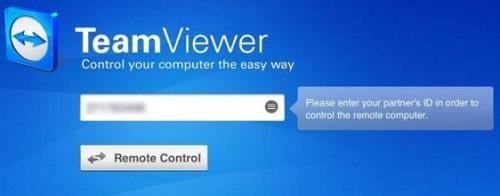
All you need to do is to download and install the utility and now you will see that you are provide with three options to install.
You will see that the first one is for a full installation with all the available options. Next you will see that you are provided with the choice to install to control this computer later from remote. The third option is run only in which the software runs but you cannot install anything. You can use this if you want a mobile version of the software say on your thumb.
You may choose any of the options to install. Whatever you choose, you must not forget to choose “personal/ non- commercial use” as given in the bottom of the window.
Next you have to install the software on your mobile device. You have to run the app and then enter the ID as given on your desktop and then give the password. You can follow the instructions and do as you want.

joseph cyriac is a contributor at How To Guide. We are committed to providing well-researched, accurate, and valuable content to our readers.
You May Also Like

Related Articles