How to Find System Up Time on Windows 7
📋 Table of Contents
Table of contents will be generated automatically based on article headings.
Do you want to see how long you’ve been sitting in front of the computer, if you turn it off after each use? Or if you go away from your computer on for extended periods of time, it’s usually a good idea to perform a reboot. Furthermore, if you’re managing multiple computers, it’s difficult to remember when each received a reboot or a start. That’s why Windows keeps track of your total up time and the last time your computer booted. Here’s how to access those information, follow the steps:
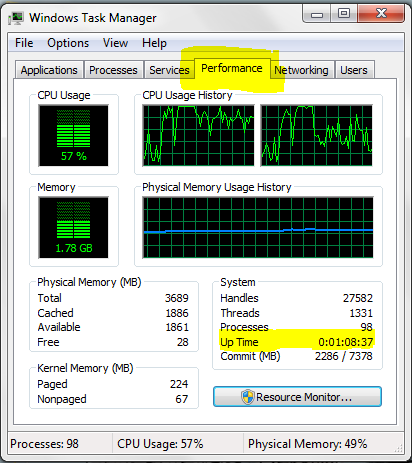
1: Launch the task manager. You can do this in one of three ways:
a: Press Ctrl+Alt+Delete. On the screen that appears, select ‘Start Task Manager’.
b: Right click on the taskbar and select ‘Start Task Manager’.
c: Press CtrlL+Shift+Esc.
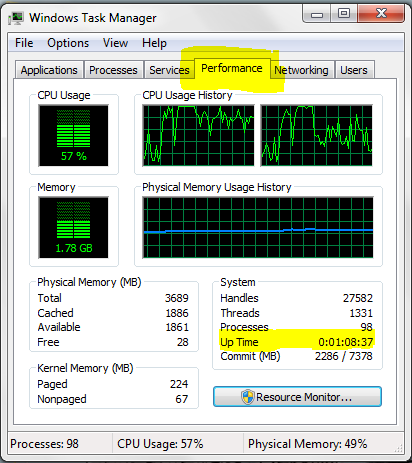
2: In this window, go to the Performance tab.
3: Observe the block labeled ‘System’. Your system’s up-time will be displayed next to Up Time in the format of Days:Hours:Minutes:Seconds.

BW is a contributor at How To Guide. We are committed to providing well-researched, accurate, and valuable content to our readers.
You May Also Like

Related Articles