Managing Data Usage in Android 4.0
📋 Table of Contents
Table of contents will be generated automatically based on article headings.
The ability to monitor data usage and in some cases automatically turnoff mobile data are provided by ICS to users.
With Android 4.0 monitoring the mobile data usage is just a piece of cake. Here is how it’s done.
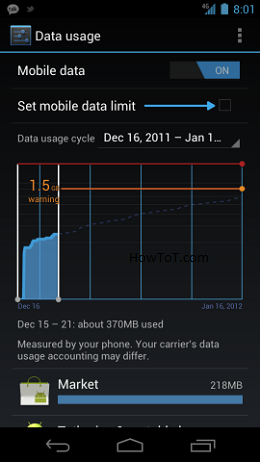
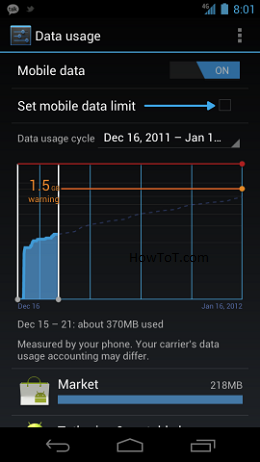
First open the settings app and then select Data Usage, now you’ll access the Data Usage settings screen. One navigating through the screen you’ll see something similar to the screen above.
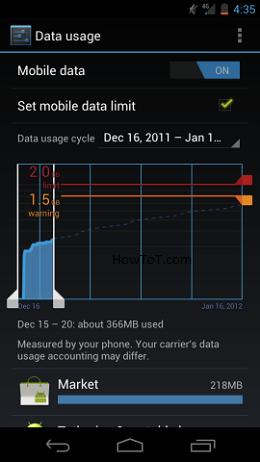
The data usage is represented by the orange bar on the graph with which you’ll receive precautionary warnings. By sliding the bar up and down you can adjust the warning level.
The billing cycle of your wireless carrier might be different. So matching to the billing cycle of your wireless carrier you can set the data range on the mobile data measurement to reset itself. The procedure is so easy as checking a box.
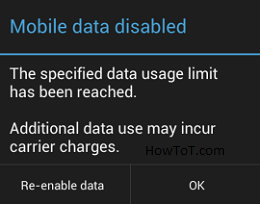
Now let’s see how to set the device to automatically turnoff mobile data usage. A red line will be visible when you set the data limit by checking the box. Just like previous one the data limit for automatic turnoff can be moved up and down to set data limit. So that the device will automatically turn off mobile data once the set level is reached.
The dotted line going across the graph shows the current usage.
The data usage of apps and tasks may vary. So if you want to find the app or task which uses most mobile data, an app list is there, in which data usage by each app is given.
Each app has a particular data usage graph, to see the graph, just tap on the app on the list.
The graph shows how much data was used and when. The graph also shows how much data used both running in background and foreground.
If you find that an app is using so much data then you can restrict the data usage of that particular app. For that just scroll down and check the box named “Restrict background data”. That app will still be able to use background data, only when the device is connected to a Wi-Fi network.
But still you might want to prohibit all apps from using any background mobile data. Restricting all apps is very easy too. Just tap on the menu and check the box named “Restrict background data”.
There is an option to monitor the Wi-Fi data too. To view Wi-Fi data usage tap on the menu and Show Wi-Fi usage box.
There is a chance of occurring variation between data usage shown in the device and the monthly carrier usage report, the device will remind you this several times .So in order to stay out of trouble as a precaution it’s good to set the warning levels lower than the true one.

BW is a contributor at How To Guide. We are committed to providing well-researched, accurate, and valuable content to our readers.
You May Also Like
Related Articles